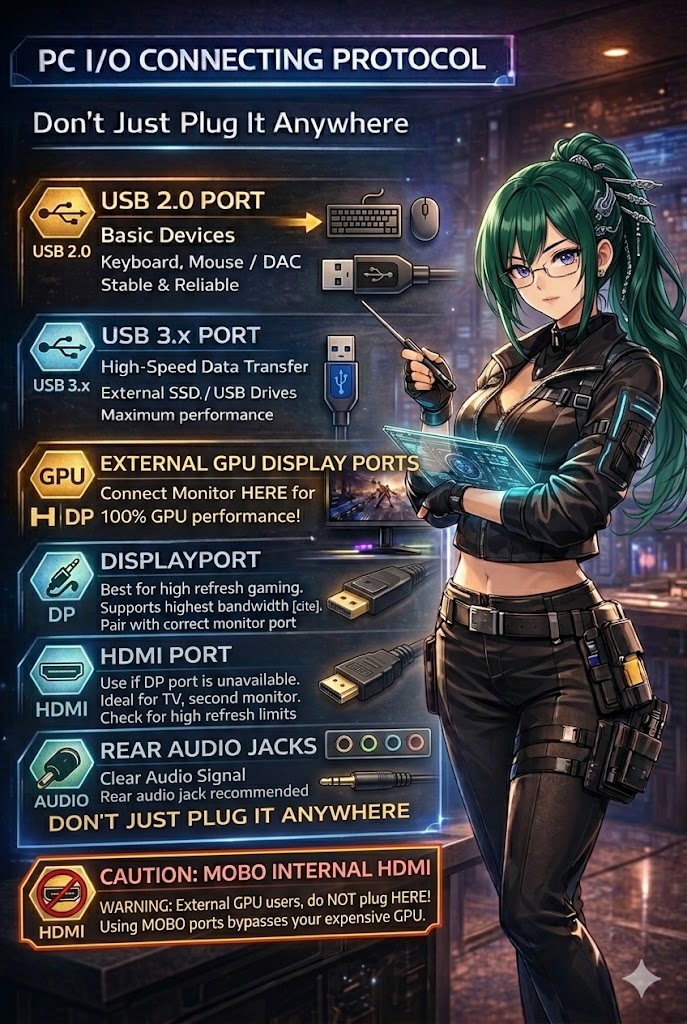
Many PC users unknowingly reduce their system performance simply by connecting devices to the wrong ports. Modern PCs include multiple USB, display, and audio ports, each designed for a specific role. Using the correct port ensures maximum performance, stability, and proper hardware utilization.
USB Port Priority
USB 2.0 ports are best for keyboards, mice, and USB DACs. These devices require stability and low latency rather than high bandwidth.
USB 3.x ports should be reserved for external SSDs, USB drives, and capture devices where high-speed data transfer is necessary.
Monitor Connection — Most Critical Rule
If you are using a dedicated graphics card, always connect your monitor to the GPU ports, not the motherboard HDMI port.
Motherboard HDMI uses integrated graphics and completely bypasses your external GPU, resulting in massive performance loss.
DisplayPort vs HDMI
DisplayPort is the best option for gaming monitors, offering higher bandwidth and full support for high refresh rates and adaptive sync.
HDMI is suitable for secondary monitors or TVs, but may have refresh rate limitations depending on the version
.
Audio Connection Recommendation
Rear motherboard audio ports provide cleaner sound and less electrical interference compared to front panel ports.
Final Rule
Every port exists for a reason. Using the correct port ensures full system performance and prevents unnecessary hardware limitations.
Connect smart. Unlock full performance.
Don't just plug it anywhere.